Private login to the ‘BEAR’ server
Public workstations, each workstation has its own separate login even though they may share a common password. Public workstations do not have access to any managers files and are limited as to what they can do.
Private Users, for a private user to access the system, they will need to login with their private user name and password, this may involve logging off (sign out) the current users as only one user can be logged in at a time.
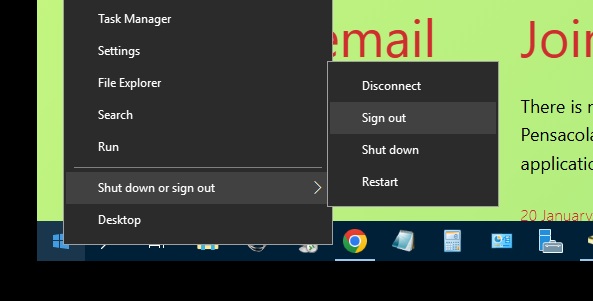
To sign out of a workstation, right click the windows start menu icon as shown in the image below.
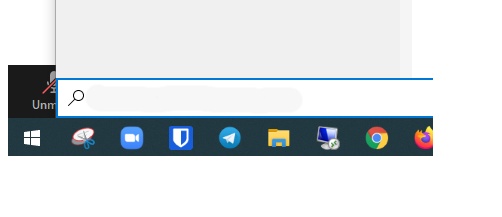
First time logging into ‘BEAR’ on a new or different workstation, the following steps must be observed. If you do not see the Remote Desktop icon to connect to bear you will need to search for it in the windows search bar by typing in ‘RDP’ and Remote Desktop Connection will show up in the list, before clicking on it you may want to right click it and ‘PIN’ it to the taskbar to make it easy to find next time.
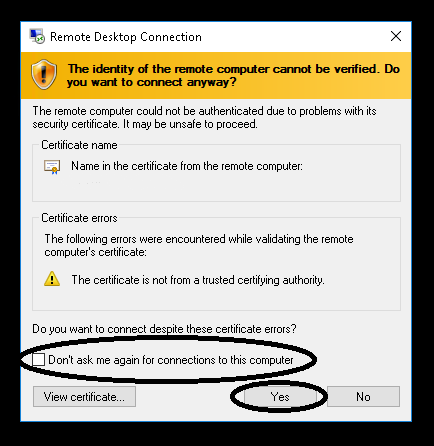
At any point if you see the error stating the identity of the remote computer can not be verified, do not worry, this is because we sign our own internal security certificates. To continue check the box – ‘Do not ask me again…’ then click ‘YES’
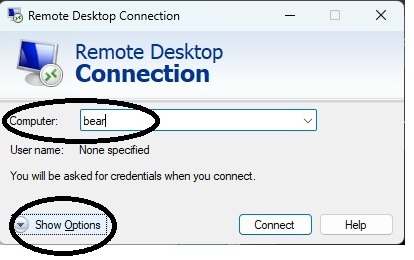
Once you click on Remote Desktop Connection, the app will open, Then in the Computer part fill in the name ‘bear’ as seen in the image below, then choose show more options (this is a one time, first time step, but must be done the first time you use a different computer to connect.)
Once you have filled in the name, select ‘show options’
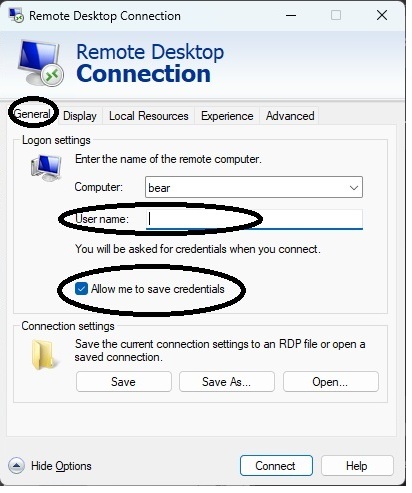
Under the GENERAL tab, fill in your user name and check the box where it says ‘allow me to save my credentials, then back at the top choose ‘ Local Resources’.
Usernames on the Bear Server are first initial last name. For example Alex Smith would be asmith and If you change your password, it must be secure, at least 8 characters including uppercase, lower case, number and symbol
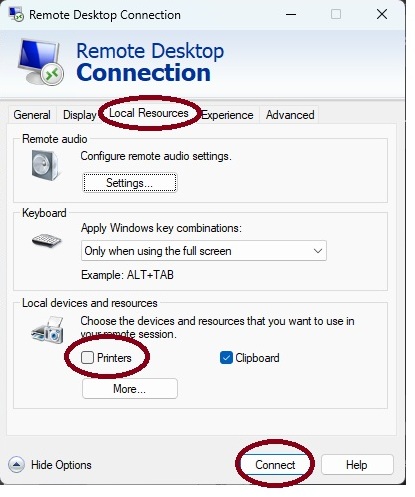
Under the ‘Local Resources’ Tab, please make sure that the ‘Printers’ box in NOT checked, as this will provoke problems in the Cornerstone program, such as being slow, freezing, or just crashing and closing out. Once this is done you may connect.
The next time you open ‘Remote Desktop’ you will be able to just click ‘Connect’
- There is no account sharing on private sign-ins, your password is yours, do not share it. You will be responsible for system access.
- If your password is compromised you may change it by first signing out of any remote sessions, and then from the local computer hit the key combination <ctrl><alt><delete> and choose the change password option
- Only files stored in your Documents folder will be backed up, nothing stored on your desktop will be included in the backup. Large files such as pictures and videos should not be stored on the desktop as this will cause your computer to run slow and take a long time to log in.
- your document folder is private and only accessed with your user and password. Any thing you may want to share should be placed on the shared drive
- Any Remote Desktop session left idle for more than two hours will automatically be logged out, any unsaved work may be lost at that time
- If you walk away from your computer and have work open and do not want to log off you may lock the screen by pressing and holding down the windows key and then tap the L key, this will lock the screen which can then be unlocked with your same login password